# Project Setup
This guide walks you through setting up a project within the OpenAI Platform. You’ll learn how to configure your project name, manage API keys, and explore additional settings found under the **Settings** menu in the top-right corner of the dashboard.
***
### 1. Accessing the Project Settings
1. **Navigate to the Dashboard:**
* Log into the [OpenAI Platform / Settings](https://platform.openai.com/settings/organization/general).
* Look for the **Settings** icon or menu in the top-right corner of the page.
2. **Select Your Project:**
* In the left-hand navigation, choose the project you want to configure or create a new one if needed.
3. **Open Project Settings:**
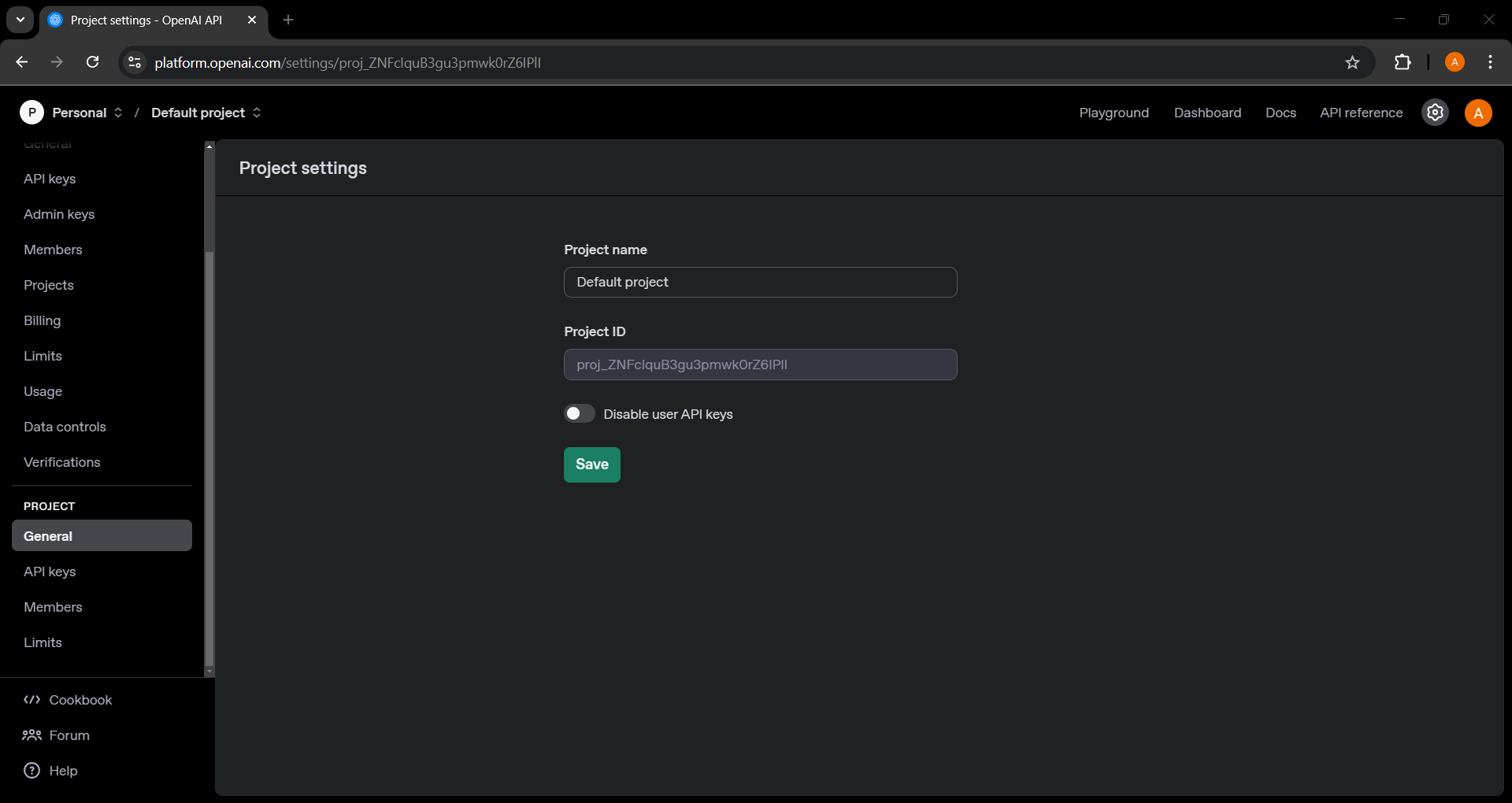
* Click on **Project** → **General** to access the main configuration page for your project.
OpenAI Platform: Project Settings
***
### 2. Configuring Project Details
1. **Project Name**
* Enter a clear, descriptive name for your project.
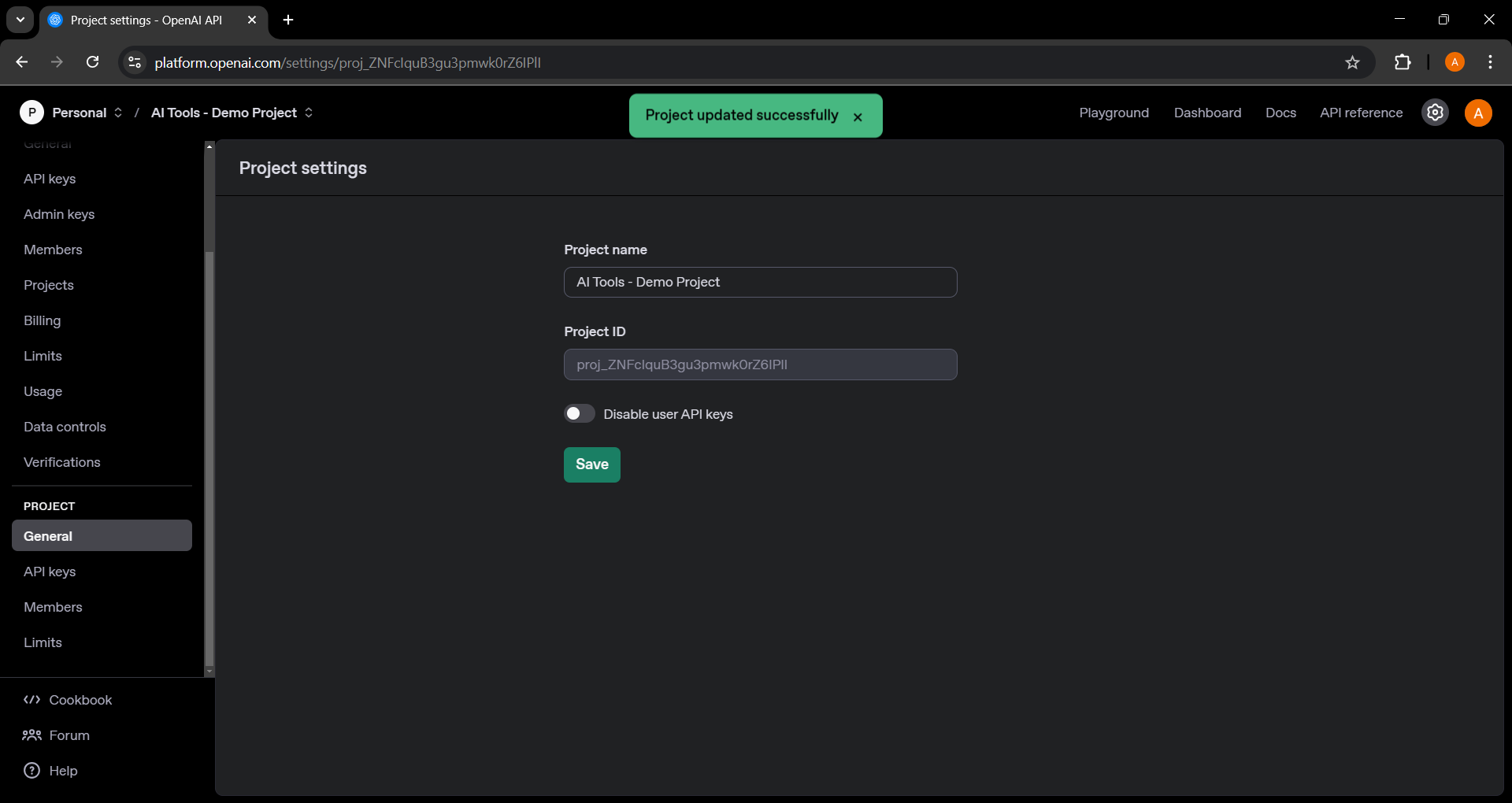
* This name appears in the top-left corner and helps you identify the project across the platform.
2. **Project ID**
* A unique identifier automatically generated by OpenAI.
* Typically used internally by the platform; you usually don’t need to change this.
3. **Disable User API Keys (Optional)**
* If enabled, members within this project cannot generate individual API keys.
* Useful for restricting key creation and centralizing access.
4. **Save Your Changes**
* Click **Save** to confirm any updates made to your project settings.
OpenAI Platform: Project Name Changed
***
### 3. Managing API Keys
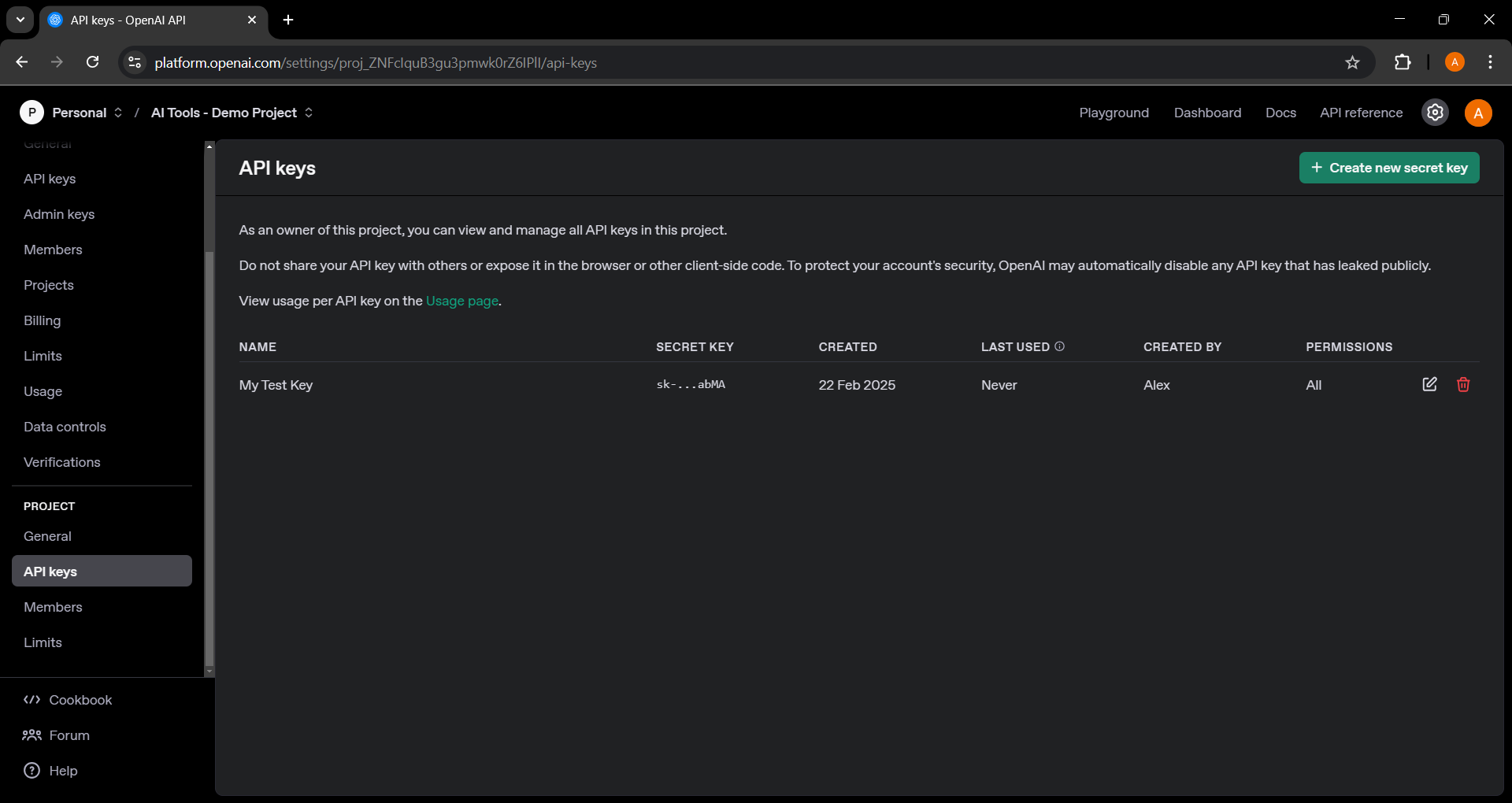
Once your project details are set, you can create and manage API keys that belong to this specific project.
OpenAI Platform: Project API Keys
1. **Go to API Keys**
* Under the same **Settings** menu, select **API Keys** from the left-hand navigation.
2. **Create a New API Key**
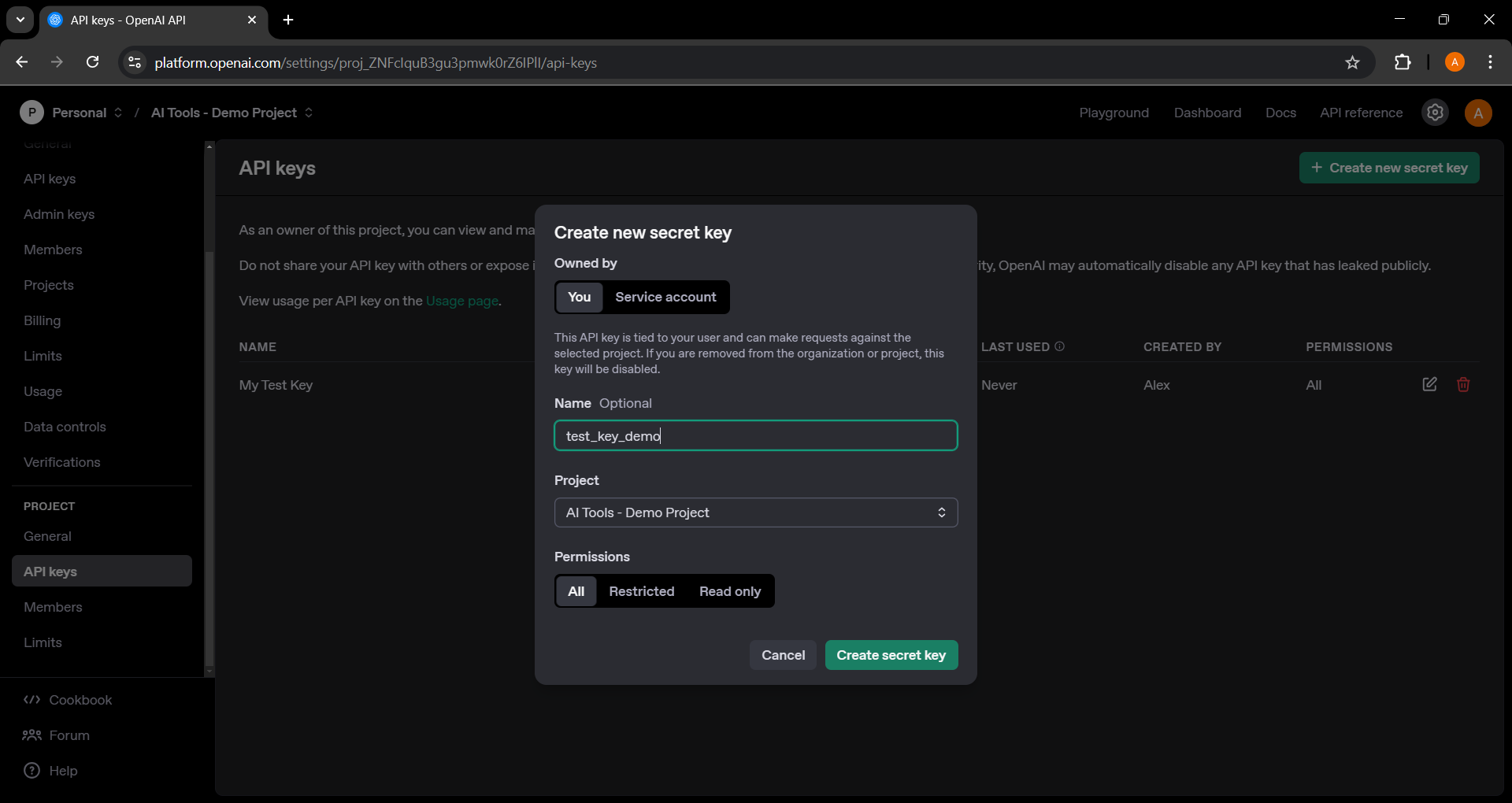
* Click **Create new secret key**.
* Name your key for easy identification, especially if you plan to generate multiple keys.
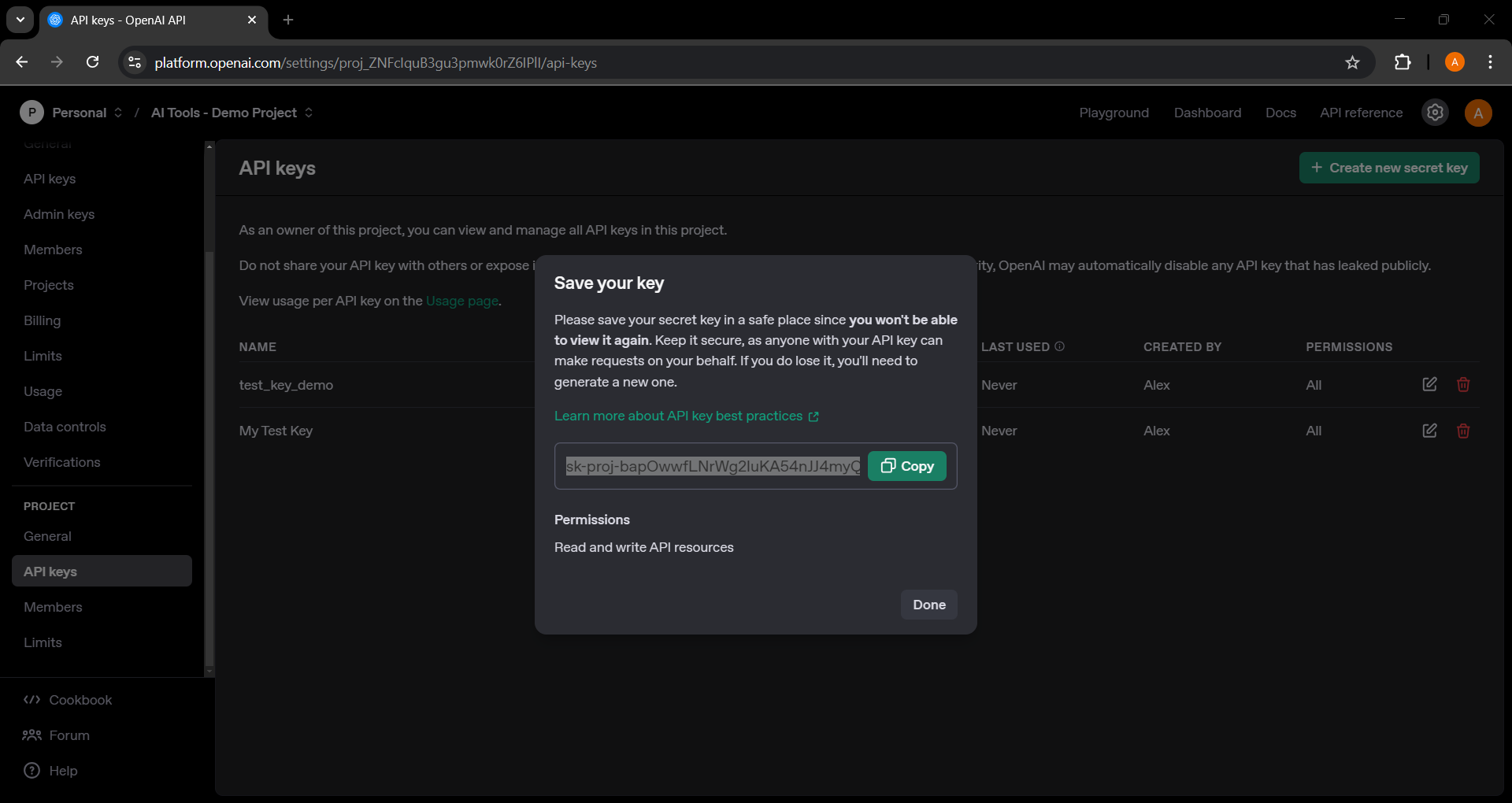
3. **View, Copy, and Secure**
* Copy your newly generated **Secret Key**.
* Store it in a safe place—once you navigate away, you may not be able to view it again.
4. **Key Permissions**
* Keep track of who created each key and its permissions.
* If you need to revoke access, you can delete or regenerate the key at any time.
OpenAI Platform: Create new secret key
OpenAI Platform: Save you key
***
### 4. Summary and Next Steps
By following these steps, you’ve:
* Accessed the **Project Settings** under the **Settings** menu.
* Configured essential fields like **Project name** and **Project ID**.
* Created and secured your **API keys** for use within this project.
{% hint style="success" %}
**Tip:**
Once your project is set up, consider exploring the **Playground** or other dashboard features to test your API calls. Remember to keep your keys confidential and rotate them periodically for security.
**Note:** Prompting in **Playground** will use your budget.
{% endhint %}